

The roster
Pool of Radiance
Runs from start to finish today, from your own copy of the game.
- Status
- Status: Playable
- Released
- 1988
- Publisher
- Strategic Simulations, Inc.
- Series
- Pool of Radiance series
- Recognised versions
- The release sold today on GOG and Steam, and a third-party repack of it
- More about it
- D&D Games Codex (opens in a new tab)
Playing it
Pool of Radiance runs in Amber Folio today. You supply your own copy of the game; the guide explains what to hand over.
Enhancements
The player has these built in for Pool of Radiance. Each is drawn on the game’s own screen in its own colours, and none of them changes the story, the rules or the challenge; your game files are never modified. They work on the recognised release above, and a copy the emulator does not recognise runs with all of them unavailable.
Press Options on the player’s toolbar and go to Enhancements for a switch for each one. You can change them while the game runs, and what you choose is kept with your copy of the game. Every one is on from the start; switch off any you would rather do without. The CRT filter, the on-screen keyboard and the saves panel are the player’s and work in every game; Enhancements describes those.
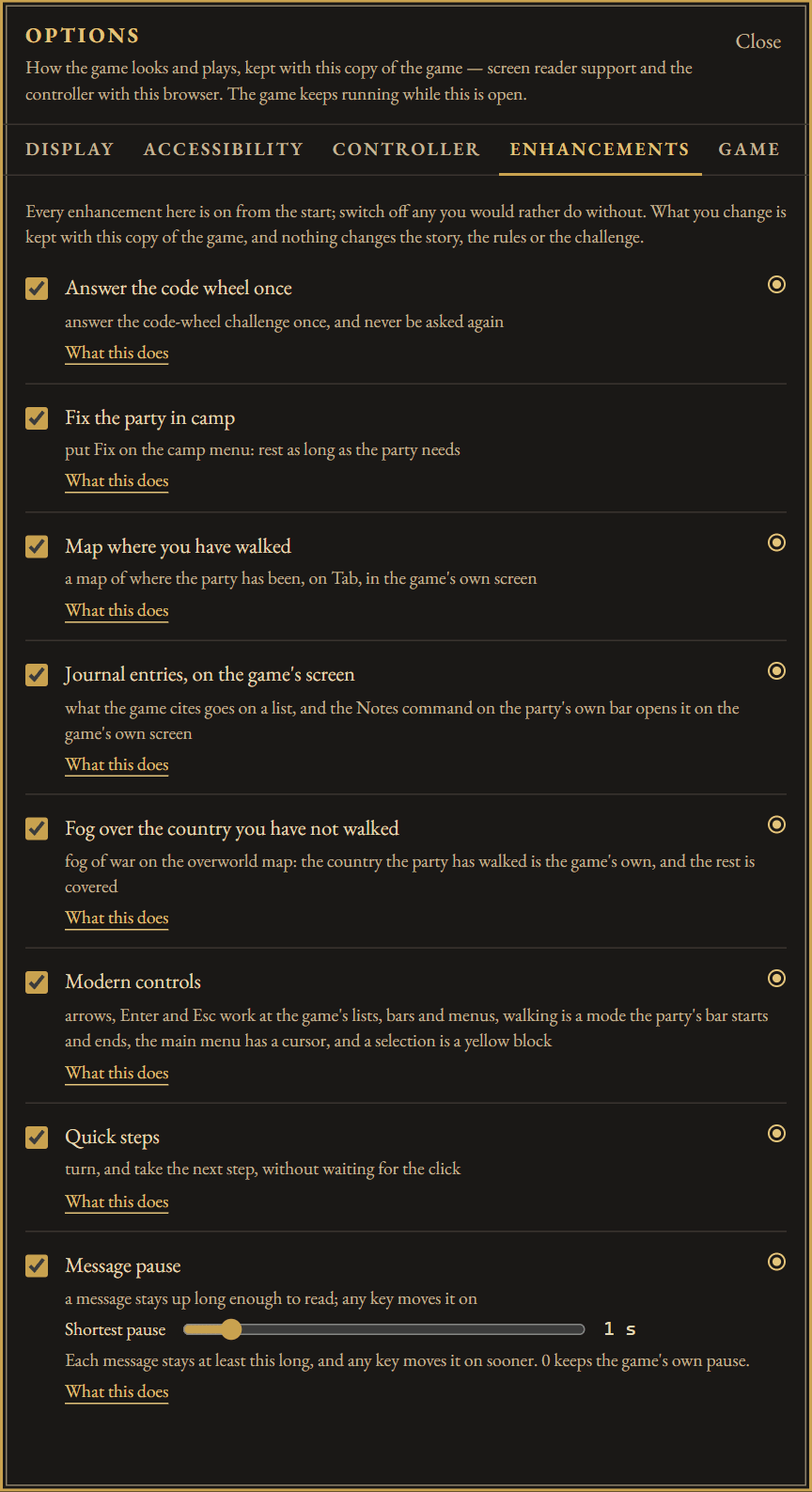
Fix the party in camp
Puts a Fix command on the camp screen: the party casts the cures it is carrying, rests only as long as memorizing them again takes, and casts again, until nobody is hurt. A party a fight left low heals in a day or two of the game's time rather than a month.
How to use it. Nothing to switch: it is on from the start. In the game, make camp as usual, and choose FIX from the camp screen's command bar. To stop a long Fix, press any key while it is casting; it finishes the cure in hand and returns to the camp bar. During a rest, answer Yes to the game's STOP RESTING? and the Fix stops there too. To do without it, switch it off on the Enhancements tab of Options, on the player's toolbar.
The cures are the party's own, spent through the game's own cast driver with one queued back for each one spent, and each rest is the game's own rest with its clock dialled to the time memorizing them takes rather than hit points written into a record. A party that can bring no cure back — nobody holding one, nobody able to cast those held, or an area that refuses spells — rests out the days the wounded still need instead. The command is spliced into the string the program draws its command bar from, and the report afterwards, drawn by the game in the game's font, covers the whole command: the hit points healed, the spells cast and the time it took. If a wandering monster interrupts a rest it says so, and does not retry.
Map where you have walked
Tab draws a map of the squares your party has walked, over the roster on the game's own screen, and Tab takes it away again.
How to use it. It is on from the start; click the picture so the game has the keyboard. While exploring a city or a dungeon, press Tab to show the map and Tab again to hide it; on a touch screen, Tab is on the on-screen keyboard. The map is kept with each saved game: saving writes it and loading that save brings it back, so a new party starts with an empty map, and what you explore without saving is lost with the session, just as the party's own progress is. To do without it, switch it off on the Enhancements tab of Options, on the player's toolbar.
It is drawn into the game's own planes in the game's own sixteen colours, at the game's own resolution: a wall in the colour of the tiles the 3D view blits for it, a door leaf where a wall face has been seen shut, and the area's name set in the program's own glyphs. Tab is taken out of the keystroke buffer before the program's key routine looks, so the game observes exactly what it would have observed had the key never been typed, and the panel steps aside whenever another bar takes the screen — an encounter, a shop, camp — and comes back when the party's own bar returns.
Journal entries, on the game's screen
When the game cites an entry, tale or proclamation, it goes on your list, and a Notes command on the party's bar opens that list — newest first, unread marked — and any entry on it as a full screen.
How to use it. Two steps, the first of them once. Give the player your Adventurer's Journal PDF: it comes in with the game folder if it is in there, or through Choose file (or a Dropbox link) on the journal's row in the player's Files panel. Choosing it there reads it straight away; a journal that came in with the folder is read with Read your journal on the same row. The reader itself is on from the start. In the game, choose Notes from the party's command bar to see what has been cited so far.
The text is your own journal: your PDF, located and read once and then kept in this browser's own storage and nowhere else. How it is read depends on the printing. The journal Steam sells is typeset, and is read from its own text in a moment, with nothing to download. The one GOG sells is scans, and reading those means an OCR engine, about seven megabytes of one, served from this site's own origin rather than from anywhere else and downloaded only when a scanned journal is read; that reading takes minutes. Neither is repeated on a later visit. Nothing of your journal ships with the emulator or with this site, and nothing of it leaves your browser. An entry opens as a whole screen in the game's font, paged with NEXT, PREV and EXIT, with an entry that is a drawing shown as the page after its caption; the screen is given back through the program's own composer. Notes is the only way in, because a command on the party's own bar is the one place a whole screen can be handed back. A citation is matched by its shape — the word a numbered section is called by, and the number after it — rather than by any of the game's prose. The emulator knows the journals GOG and Steam sell with each game, and each game reads only its own: the two number their entries separately. The file is hashed here and the emulator is shown only the digest, and a journal it does not know is refused rather than guessed at, with its fingerprint printed so it can be identified — where each entry sits on the page is true of one file, and following those positions into another would produce nonsense rather than a warning.
Fog over the country you have not walked
On the overworld map, where the party has walked is the game's own picture and the rest is under a fine black haze, which lifts a square at a time as you travel.
How to use it. Nothing to switch: it is on from the start, and there is no key: the haze is there whenever the game shows its overworld map. It shares its record of where you have walked with the automap, so ground you covered with only the automap on is already clear. To do without it, switch it off on the Enhancements tab of Options, on the player's toolbar.
The haze is black, laid on every other pixel, so half of what is under it is the game's own map and the shape of the country is still there to be read. Black rather than a grey: grey read as terrain over some ground and as a covering over other ground, and black is the game's own colour for what is not there and is the same over all of it. Nothing is added to that screen that the game does not already draw: no grid, no border, no lettering. Only the square the party is standing on is clear — a radius of nothing, because the window is five squares across and a radius of one fills the map faster than a party can explore it, both of which were measured rather than assumed.
Modern controls
The arrow keys, Enter and Esc work across the whole game, beside its own letter shortcuts, and whatever is selected is drawn as a yellow block, its key letter as a white one, so it reads without telling colours apart. Walking is a mode, as in the series' later games: choose Move on the exploring bar, and the arrows walk until you go back to it.
How to use it. It is on from the start; click the picture so the game has the keyboard. Every key it adds is listed under Keys below. To play with the game's own keys and colours, switch it off on the Enhancements tab of Options, on the player's toolbar.
The game takes a command by its first letter, and its arrows work on some screens and not on others. With this on, the arrows move whatever is selected wherever they would otherwise do nothing, Enter takes it, and Esc answers No. Exploring, the party's bar starts on Move, in towns and dungeons where Area was, since the automap is the overhead view now; at the main menu the number keys 1 to 8 select a party member, and the party list there shows each member's number, so a name of fifteen letters shows its first fourteen. Every letter shortcut still works, and switched off, the game's keys and colours are exactly as they were. At the save-game slots Enter saves to the highlighted slot, as typing its letter would, and nothing asks first; the slot highlighted when the bar opens is the one highlighted last time, and Left and Right move it. On a character's Items list, Enter on Ready readies the highlighted item. A few places keep the game's own keys on purpose: the arrows still change a new character's ability scores, and Enter does nothing on the abilities screen, where a stray press would throw the changes away.
Quick steps
Turning and walking answer the key sooner. The footstep click still plays.
How to use it. Nothing to switch: it is on from the start, and there is no key. Walk and turn as usual. To have the game wait for every click as it always did, switch it off on the Enhancements tab of Options, on the player's toolbar.
The game holds everything still for a tenth of a second while each footstep click plays: before the view turns, and both before and after the view moves on a step forward. With this on, a turn's click plays while the view turns, so the new view arrives in about half the time, and a step's second click plays while the game takes your next key. A step's first wait stays, because it is what spaces the step's two clicks the way the game always had them. Every click still plays to its end. Nothing else gets faster: every other sound waits as it always did, and the time the game spends drawing the view is its own.
Message pause
A fight's lines and the game's other passing messages stay up long enough to read, and any key moves them on.
How to use it. Nothing to switch: it is on from the start. Press any key, or a controller button, to move a message on before its time is up. How long a message stays is the number beside its switch on the Enhancements tab of Options, on the player's toolbar, from 0 to 10 seconds in quarter-second steps; 0 keeps the game's own pause and only lets a key end it.
The game shows each line of a fight, a flashed warning and some scripted lines for a set pause and then moves on by itself, without waiting for a key: a quarter of a second at the game speed every save starts with. On the computers the game was written for, the drawing around that pause stretched it to a few seconds; in this player there is next to no drawing, and a fight's lines go by about twice a second. With this on, each of those pauses lasts at least a second, and any key ends it early. The key is used up ending the pause, so it does not also answer whatever comes next. Nothing else slows down: the game's own Speed setting (Encamp, Alter, Speed) slows the walk and every animation along with the messages, and this leaves them alone. A game Speed that already pauses longer is left as you set it, and a monster's approach and a death in a fight keep the game's own timing. When the game goes straight from a line of its own into the encounter menu (Combat, Wait, Flee and Parlay or Advance), which would wipe the line as soon as it is typed, it waits the same length first, and a key ends that wait too. Any other line the game replaces at once, with no pause at all, is not given one.
A fanfare at the start
A short piece of music, written for Amber Folio, plays on the Tandy sound chip while the game starts.
How to use it. Nothing to switch: it is on from the start, and plays every time the game boots, a reset included. Browsers keep sound off until you click, tap or press a key, so when the game starts by itself on a return visit you hear the piece from your first click or key. To go without it, switch it off on the Enhancements tab of Options, on the player's toolbar: a piece already playing stops at once, and it stays off at every boot after.
The game is silent from the end of its loading screen until its first sound in play. With this on, a piece of about thirty-one seconds plays on the Tandy sound chip from the moment the loading is done, on through the publisher's logo, the title and the credits and into the menus. It was written for this project, and nothing in it is the game's. A key that hurries the titles along does not stop it. The first sound the game makes, a footstep or a door, ends it for good, and so does turning the game's sound off (Ctrl-S); the chip is then the game's again, silent as the game left it.
Lettering
An accessibility option: the game's text redrawn in a face made to be easier to read, for anyone who finds the original lettering hard going. A plain bold sans with a slashed zero, or the same face cut as if by a broad pen.
How to use it. It starts as Sans. To change it, open Options on the player's toolbar, go to Accessibility, and choose a face under Lettering: Original (the game's own), Sans or Chisel. What you choose is kept with your copy of the game. A new face shows as the game draws its next letters. What is already on the screen keeps its old face until the game draws it again, usually at your next key.
Sans. The game's lettering in a plain bold sans, with a slashed zero. Bold two-pixel strokes, drawn for this project.
Chisel. The same bold face with every stroke cut at an angle, as if by a broad pen. The sans's letters, with each stroke's ends cut on the slant.
The faces have bold two-pixel strokes and a zero that cannot be read as an O, so the game's letters and digits are easier to tell apart. Only the letters, digits and punctuation change — the game's frames and runes stay its own, its font is never altered, and Original brings its lettering back.
Answer the code wheel once
The game asks its copy-protection question the first time you play. Answer it, and it is never asked again.
How to use it. Nothing to do: it is on from the start. The first time the game starts it asks its question; answer it and every later start goes straight to the menu. To be asked again once, open Options on the player's toolbar, go to Enhancements, and press Ask me again beside it; to be asked every time, switch it off there.
With this on and the question unanswered, the enhancement does nothing at all: the game asks exactly as it always did, and the seam only watches the program's own comparison. Answer correctly — off your wheel, your manual, or the code generator application the releases sold today ship instead of one — and it remembers that. Every launch after that steps over the call that draws the challenge, so the game goes from its titles straight to its menu. It never answers the question for you, in either state. What this browser writes down is only that you answered, against the fingerprint of the program — not the question, not the answer, not the time — and it is kept here and nowhere else. If your copy came with a PDF of the wheel, it is recognised and kept with your copy, and asks nothing of you.
Keys
Modern controls adds these keys, and it is on from the start. Every key the game had still works beside them.
- M, or Enter on Move
- Start walking. Exploring a town, a dungeon or the wilderness, you arrive at the party's command bar with Move lit: in towns and dungeons it is where Area was (the automap, on Tab, is the overhead view now), and in the wilderness it comes before Cast. While you walk the bar reads Exit, and the arrows, the keypad and the number row walk and turn as they always did. Enter, Esc or E take you back to the bar, and so does a fight, camp, a shop or any other screen; a locked door does not.
- Left and Right
- Move the highlight along a command bar, the exploring bar included until you choose Move. Not in combat's movement and aim, or in Modify, where they change a value.
- Enter
- Take the highlighted command, on almost every bar, a locked or stuck door's and combat's aim bar included, and on the main menu. At the save-game slots it saves to the highlighted slot, as typing its letter would, and on a character's Items list, Enter on Ready readies or unreadies the highlighted item. When the game asks for a party member, as Trade and a spell cast on someone do, Enter on Exit chooses nobody.
- Up and Down
- Select the previous or next party member wherever Home and End do, including at a door and the save-game slots. At the exploring bar they select a party member until you choose Move, and walk after.
- Up and Down in a list or the main menu
- Move the highlight up or down.
- 1 to 8 on the number row
- Select that party member at the main menu, where the party list shows each member's number. Everywhere else they do what the game makes of them.
- Esc at a Yes/No question
- Answer No.
- Left, Right and Enter in Notes
- Move along the journal reader's bar and take the highlighted command.
- Arrows and function keys in a name
- Do nothing, where the game used to type a letter for each.
- The selection
- Drawn as a yellow block with its letters cut out in black, and its key letter as a white block, with a margin all round so its letters do not touch its edges. It reads without telling colours apart: a bar's highlighted command, a bar of one command such as Press Enter to continue, a list's row, the main menu's cursor, the selected party member, Modify's score, the journal's listing and bar. A script's answer of several words is lit whole, and the save-game slots show which one Enter will save to.
In every game, the key below Esc, to the left of 1, is Esc too: useful in a browser that leaves full screen on Esc, and on an iPad keyboard, which has no Esc.
The game plays with a controller too: the enhancements page says which button does what, and how to change them.
With screen reader support on, Ctrl+Alt+R reads the whole screen aloud, and so does a controller’s right bumper; Ctrl+Alt+W, or the left bumper, says where the party is (in a fight, whose turn it is and where the enemies are), and Ctrl+Alt+M reads what is explored around it a row at a time (in a fight, what stands next to whoever is acting). The enhancements page says what it reads and what it cannot.
Where to buy a copy
Pool of Radiance is sold today as:
- Forgotten Realms: The Archives — Collection Two — GOG (opens in a new tab)
- Forgotten Realms: The Archives - Collection Two — Steam (opens in a new tab)
For most titles the link buys a collection rather than the single game.
Party transfer
- Exports its party to Curse of the Azure Bonds.
Carrying characters from one game to the next is something the games were built for. A party kept in this browser can be taken on into Curse of the Azure Bonds: Curse of the Azure Bonds says how.